SSL certificate mistakes are easy to underestimate because the site may look fine right up until the moment a browser refuses the connection. A small renewal miss, a hostname mismatch, a broken certificate chain, or a rushed CDN change can turn a normal visit into a “Your connection is not private” warning. For a personal blog, that may mean lost visitors. For a store, client portal, SaaS dashboard, booking form, API, or internal tool, it can interrupt logins, payments, data transfers, and trust.
The risk is not only technical. It is operational. SSL and TLS sit between the visitor, the browser, DNS, hosting, load balancers, firewalls, CDNs, reverse proxies, APIs, and certificate authorities. When one part is handled casually, the secure connection can fail like a locked door with the wrong key.
Plain Risk View: Most SSL certificate disruptions come from ownership gaps, not from the certificate itself. Someone buys it, someone else installs it, another person controls DNS, and nobody owns the full renewal and testing cycle.
Why SSL Certificate Mistakes Disrupt Secure Connections
An SSL certificate does more than add a padlock icon. It helps the browser confirm that the domain is the one it claims to be, that the certificate was issued by a trusted certificate authority, and that encrypted communication can begin safely through TLS.
When the browser cannot verify that chain of trust, it may block the visit, show a warning, or label the page as not secure. In some cases, only one browser complains. In others, mobile apps, embedded widgets, APIs, payment pages, and admin panels stop working at the same time.
SSL problems often appear during ordinary changes:
- Moving a site to a new host
- Changing DNS records
- Adding a CDN or reverse proxy
- Renewing a domain name
- Launching a subdomain
- Replacing a load balancer
- Switching from HTTP to HTTPS
- Updating a server, firewall, or web application stack
The mistake is usually not one huge failure. It is a missed detail that was assumed to be “already handled.”
Common Wrong Assumptions About SSL Certificates
Before looking at the mistakes, it helps to name the assumptions that create them. They sound reasonable. That is why they are risky.
| Wrong Assumption | Why It Fails | Safer View |
|---|---|---|
| “The certificate renewed, so the site is safe.” | The new certificate may not be installed on every server, proxy, or CDN edge. | Renewal and deployment should be checked separately. |
| “HTTPS works on the homepage, so everything is fine.” | Subdomains, API endpoints, admin panels, and old URLs may use different certificates. | Test the full connection path, not only the front page. |
| “Auto-renewal removes the risk.” | Auto-renewal can fail because of DNS, account, payment, permission, or validation issues. | Automation still needs monitoring and alerts. |
| “A wildcard certificate covers everything.” | It may not cover deeper subdomains or unrelated hostnames. | Match coverage to the real domain structure. |
| “The hosting company handles SSL.” | The host may cover only the main site, not third-party services or custom infrastructure. | Clarify who owns each certificate-dependent system. |
11 SSL Certificate Mistakes That Disrupt Secure Connections
Mistake 1: Letting Certificates Expire Without a Tested Renewal Process
An expired certificate is one of the most visible SSL mistakes. The site may load normally for months, then suddenly browsers begin warning users that the connection is not private. This is especially painful because the fix may be simple, but the damage happens in public.
Why It Happens
Expiration usually happens when renewal is treated as a calendar reminder rather than a process. The person who bought the certificate may leave. Renewal emails may go to an old inbox. Auto-renewal may be enabled, but the payment method, DNS validation, or account access may fail quietly.
Public SSL/TLS certificate lifetimes are also getting shorter over time. That means manual renewal habits that once felt manageable can become unreliable as renewal cycles get tighter.
Early Warning Signs
- The certificate expires in less than 30 days and no one has confirmed the renewal owner.
- Renewal emails go to a generic or former employee address.
- There is no certificate inventory for subdomains, APIs, or staging systems.
- Only one person knows where the certificate was bought.
- Monitoring checks only whether the website is up, not whether the certificate is valid.
Worst-Case Result
The browser blocks users at the point of trust. Customers may abandon checkout, partners may pause API traffic, employees may lose access to internal tools, and support tickets may arrive before the team understands what changed.
Safer Approach
A safer setup treats renewal as a lifecycle: inventory, renewal, validation, deployment, testing, and alerts. For small sites, this may be a simple hosted SSL setup with verified auto-renewal. For larger systems, it may mean certificate management tools, ACME-based automation, monitoring, and clear ownership.
Practical Check: Renewal is not finished when a new certificate is issued. It is finished when the new certificate is active on the real public endpoint and the old one is no longer being served.
Mistake 2: Installing a Certificate for the Wrong Hostname
A certificate must match the hostname the visitor is using. If the certificate is issued for example.com but users visit www.example.com, shop.example.com, or a regional subdomain, the browser may reject the connection.
Why It Happens
This mistake often appears after a site migration, domain consolidation, rebrand, or new subdomain launch. The team may assume that the main domain certificate covers all related names. It may not.
There are also small naming traps. A certificate for *.example.com may cover shop.example.com, but not always deeper names such as secure.api.example.com. A certificate for one brand domain will not cover a similar-looking domain unless it is included.
Early Warning Signs
- Only the root domain was tested, not the www version.
- New subdomains were created after the certificate was issued.
- Redirects move users between hostnames that are not all covered.
- The certificate’s Subject Alternative Name list was not reviewed.
- Mobile apps or API clients use a different hostname than the website.
Worst-Case Result
Visitors see a hostname mismatch warning such as NET::ERR_CERT_COMMON_NAME_INVALID. The site may look suspicious even if the business is legitimate. In stricter environments, the connection simply fails.
Safer Approach
Before issuing or renewing a certificate, list the real names people and systems use: root domain, www, app, api, checkout, admin, CDN hostnames, and legacy redirects. Then match the certificate type to that map. A SAN certificate, wildcard certificate, or separate certificate may be more suitable depending on the site structure.
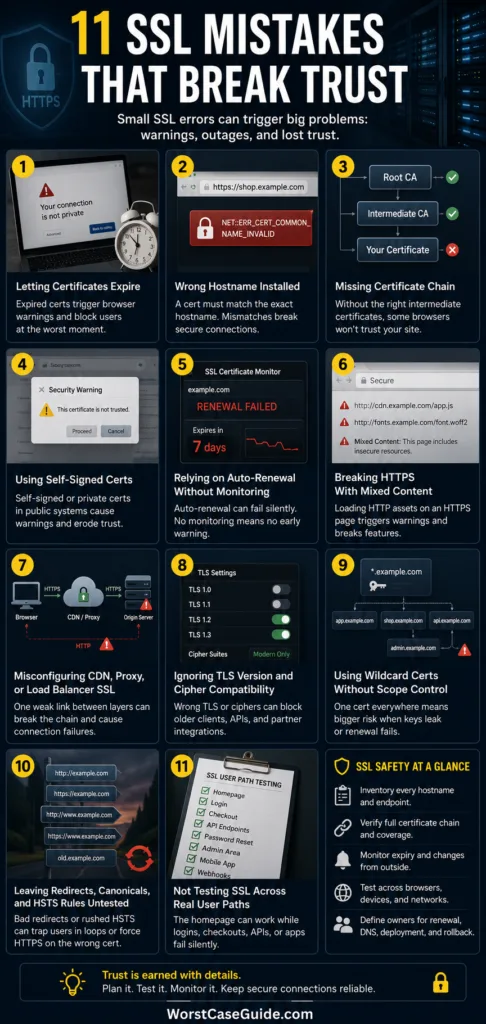
Mistake 3: Forgetting the Intermediate Certificate Chain
A valid SSL certificate still needs the correct chain between the site certificate and a trusted root certificate. When intermediate certificates are missing or installed in the wrong order, some browsers may trust the site while others do not.
Why It Happens
This tends to happen during manual installation on Apache, Nginx, IIS, load balancers, containers, or reverse proxies. Someone uploads the domain certificate but forgets the intermediate bundle. On one device, the site works because the browser has cached missing chain details. On another, it fails.
Early Warning Signs
- The site works on one browser but fails on another.
- Desktop works, but older Android devices fail.
- SSL testing tools report an incomplete chain.
- The certificate file and CA bundle are stored separately with unclear names.
- A new server was added behind a load balancer without copying the full chain.
Worst-Case Result
A portion of users cannot connect securely, which makes the incident harder to notice. Support may hear “it works for me” from one team member while real users are blocked elsewhere.
Safer Approach
Use the full certificate chain provided by the certificate authority or hosting platform. After installation, test from more than one browser, device type, and network. In larger systems, check each backend server or edge endpoint, not only the load-balanced public address.
Mistake 4: Trusting Self-Signed or Private Certificates in Public-Facing Systems
Self-signed certificates can be useful in limited internal testing. They are risky when they appear on public websites, customer portals, production APIs, or services used by people outside the controlled environment.
Why It Happens
A developer may create a temporary certificate during setup, then the site moves forward before a publicly trusted certificate is installed. In other cases, an internal certificate authority is trusted on company laptops but not on customer devices, vendor systems, or mobile browsers.
Early Warning Signs
- The issuer field shows the organization itself rather than a public certificate authority.
- Users must click through a warning to access the service.
- The certificate works only on managed company devices.
- Documentation says “temporary certificate” but no replacement date exists.
- API clients require custom trust store changes to connect.
Worst-Case Result
Users may become trained to ignore browser warnings. That is a bad habit. If a real attack or impersonation attempt appears later, the warning may no longer feel meaningful.
Safer Approach
Use publicly trusted certificates for anything exposed to public users, external partners, customer devices, search engines, or payment flows. Private certificates can still have a place in internal systems, but only when device trust, distribution, and rotation are properly controlled.
Mistake 5: Relying on Auto-Renewal Without Monitoring
Auto-renewal is useful. It is not magic. A certificate can fail to renew because DNS validation breaks, a token file is blocked, a firewall rule changes, account credentials expire, the CA account is suspended, or a rate limit is reached.
Why It Happens
Teams sometimes treat auto-renewal as a final state rather than a service that needs observability. The renewal script may work for a year, then fail after a server rebuild, permission change, or DNS provider migration.
Early Warning Signs
- No one receives alerts when renewal fails.
- The renewal job runs on a server that may be deleted or replaced.
- DNS validation records are managed manually.
- Staging and production use different renewal methods.
- There is no test showing the certificate was actually reloaded by the web server.
Worst-Case Result
The team believes the certificate is safe until the expiry warning appears. By then, the site may already be down for users who will not return to retry.
Safer Approach
Keep auto-renewal, but pair it with external certificate monitoring. The monitor should check the public endpoint, the expiry date, the issuer, hostname coverage, and whether the served certificate changed after renewal. A quiet script is not enough.
Mistake 6: Breaking HTTPS With Mixed Content
A page can have a valid SSL certificate and still show security warnings when it loads images, scripts, stylesheets, fonts, iframes, or API calls over plain HTTP. This is called mixed content.
Why It Happens
Mixed content often appears after migrating an older site from HTTP to HTTPS. Old hard-coded asset URLs remain in templates, plugins, database entries, widgets, page builders, or third-party embeds. The homepage may be clean while old blog posts, checkout pages, or landing pages still load insecure resources.
Early Warning Signs
- The padlock appears on some pages but not others.
- Browser developer tools show blocked HTTP scripts or images.
- Forms, maps, fonts, or sliders fail only after HTTPS is enabled.
- Old content contains absolute URLs starting with http://.
- Third-party widgets use outdated embed code.
Worst-Case Result
The page may load partly broken. A payment form, login script, tracking pixel, map, checkout button, or account widget may fail even though the certificate itself is valid.
Safer Approach
After enabling HTTPS, scan templates, database content, CSS, JavaScript, redirects, and third-party embeds for plain HTTP URLs. In smaller projects, a database search and browser console review may be enough. In larger systems, use automated crawling and deployment checks.
Mistake 7: Misconfiguring CDN, Proxy, or Load Balancer SSL Modes
Many secure connections do not go straight from the browser to the origin server. They pass through a CDN, reverse proxy, WAF, load balancer, or cloud gateway. Each layer may have its own SSL certificate and TLS settings.
Why It Happens
A common mistake is securing the visitor-to-CDN connection but leaving the CDN-to-origin connection weak, mismatched, or broken. Another mistake is installing the new certificate on the origin server but forgetting the CDN edge certificate. The site may appear secure in one direction and fail in another.
Early Warning Signs
- The site works when the CDN is bypassed but fails through the CDN.
- The origin server certificate expired even though the public CDN certificate looks valid.
- SSL mode settings are unclear, especially between flexible, full, and strict modes.
- Redirect loops appear after enabling HTTPS.
- Different edge locations serve different certificates.
Worst-Case Result
Users may hit redirect loops, handshake failures, or inconsistent browser warnings. Search crawlers, payment callbacks, API clients, and uptime monitors may see different results depending on route and location.
Safer Approach
Map the full TLS path: browser to CDN, CDN to load balancer, load balancer to origin, origin to internal services if needed. Each hop should have a clear certificate, trust model, expiry check, and owner. This is where a simple diagram can save hours of guessing.
Mistake 8: Ignoring TLS Version and Cipher Compatibility
SSL certificate errors are not always caused by the certificate file. A secure connection can fail during the TLS handshake if the client and server cannot agree on protocol versions, cipher suites, signature algorithms, or server settings.
Why It Happens
This mistake often appears after security hardening, server upgrades, old device support decisions, or compliance changes. A team may disable older protocols but forget about legacy scanners, embedded devices, payment terminals, older app versions, or partner systems.
Early Warning Signs
- Modern browsers work, but older clients fail.
- API partners report handshake errors rather than browser warnings.
- A recent server update changed TLS defaults.
- Security scans show weak protocols still enabled.
- There is no documented decision on minimum TLS version support.
Worst-Case Result
Some users or systems lose access without a clear visual error. In a web browser, this may look like a connection failure. In an API, it may appear as a timeout, handshake alert, or generic network error.
Safer Approach
Choose TLS settings based on the real client base, not only ideal security posture. Older, unsafe protocols should not be left open casually, but changes should be tested against browsers, mobile apps, APIs, payment systems, and partner integrations before rollout.
Mistake 9: Using Wildcard Certificates Without Clear Scope Control
Wildcard certificates can simplify coverage for many subdomains. They can also hide ownership problems. A single certificate may end up used across unrelated apps, teams, servers, and vendors.
Why It Happens
The wildcard feels convenient: one certificate covers many names. Over time, people copy it into more places. No one remembers every location. When renewal time comes, some systems get the new certificate and others continue serving the old one.
Early Warning Signs
- The same private key is used on many servers.
- No one knows all systems using the wildcard certificate.
- Teams request the wildcard certificate instead of issuing service-specific certificates.
- The certificate covers more subdomains than needed.
- Rotation is avoided because “too many things might break.”
Worst-Case Result
A private key exposure or renewal failure affects many services at once. A certificate meant to reduce work becomes a wide blast radius.
Safer Approach
Use wildcard certificates only where they make operational sense. For separate applications, API services, customer portals, and vendor-managed systems, narrower certificates may reduce risk. Track every place the certificate and private key are deployed.
Mistake 10: Leaving Old Redirects, Canonicals, and HSTS Rules Untested
SSL changes often expose old routing decisions. Redirects from HTTP to HTTPS, root to www, www to root, old domains to new domains, or app paths to new platforms can create loops, broken certificate paths, or blocked access.
Why It Happens
Redirects may live in several places: web server config, CMS settings, plugins, CDN page rules, application code, hosting dashboards, and load balancers. HSTS adds another layer because it tells browsers to use HTTPS automatically for future visits.
Early Warning Signs
- One redirect works in testing, but the full chain has several hops.
- Old domains point to a server with the wrong certificate.
- HSTS was enabled before every subdomain was HTTPS-ready.
- Browser cache hides a redirect issue during testing.
- HTTP, HTTPS, www, and non-www versions were not tested separately.
Worst-Case Result
Users can become trapped in redirect loops or forced to HTTPS on a hostname that does not have a valid certificate. With HSTS, browser behavior can persist, so a rushed setting may be harder to reverse.
Safer Approach
Test every public entry point before changing strict HTTPS rules. That includes old domains, common typo domains, marketing URLs, short links, app subdomains, and legacy pages. HSTS can be useful, but it should come after the HTTPS setup is steady.
Mistake 11: Not Testing SSL Across Real User Paths
Many SSL checks stop too early. Someone opens the homepage, sees the padlock, and assumes the site is healthy. Real users do more than load the homepage.
Why It Happens
SSL testing is often assigned to the person making the technical change. That person may check the main domain from one browser on one network. They may not test login, checkout, password reset, file upload, API calls, third-party embeds, admin pages, or mobile app flows.
Early Warning Signs
- The launch checklist says “SSL installed” but does not list tested paths.
- No one checks staging, production, and old domains separately.
- The mobile app uses endpoints not tested in the website launch.
- Payment callbacks and webhooks are excluded from SSL checks.
- There is no rollback plan if certificate deployment fails.
Worst-Case Result
The homepage works while the business process breaks. Users may browse normally, then fail at login, checkout, booking, form submission, or account verification.
Safer Approach
Use path-based testing. For a small content site, that might mean homepage, important posts, contact form, and admin login. For a larger system, test the full user journey: login, account, checkout, API, webhooks, CDN assets, mobile clients, and monitoring endpoints.
SSL Certificate Risk Patterns That Repeat
Across these mistakes, the same patterns keep appearing. The certificate is only one part of the secure connection. The deeper risk sits in process, ownership, and assumptions.
Pattern 1: One Visible Certificate, Many Hidden Dependencies
A browser shows one certificate. Behind it may be DNS, CDN, origin servers, reverse proxies, containers, load balancers, APIs, app gateways, and third-party scripts. If the team checks only the visible layer, hidden dependencies can break later.
Pattern 2: Renewal Without Deployment
Issuing a renewed certificate does not mean users receive it. The certificate must be installed, services must reload it, caches may need time, and edge systems may need their own update cycle.
Pattern 3: Security Changes Without User-Path Testing
A setting can be technically valid and still break the user journey. For example, tightening TLS rules may pass a scan but block an older mobile app. Enabling HSTS may improve security but expose old subdomain gaps. Context matters.
Pattern 4: Shared Certificates Without Shared Responsibility
Wildcard and SAN certificates often cross team boundaries. When many systems depend on one certificate, renewal and key handling need shared visibility. Otherwise, everyone assumes someone else checked it.
Safer SSL Certificate Planning Before a Change
Before changing SSL settings, moving hosting, adding a CDN, or launching new subdomains, a short pre-check can reduce avoidable outages. It does not need to be fancy. It needs to be honest.
Useful Planning Note: For smaller projects, a simple checklist and external SSL monitor may be enough. For larger systems, certificate inventory and automated renewal become less optional because there are too many endpoints to track by memory.
Pre-Change SSL Checklist
- List every hostname users, apps, APIs, and redirects depend on.
- Confirm certificate coverage for root, www, subdomains, and old domains.
- Check the full certificate chain after installation.
- Test from outside the server, not only from the hosting dashboard.
- Review CDN and proxy SSL modes before switching traffic.
- Scan for mixed content on old pages and important templates.
- Set expiry alerts that go to more than one person.
- Document the owner for renewal, DNS validation, deployment, and rollback.
How SSL Mistakes Affect Different Types of Sites
The same SSL mistake can create different outcomes depending on the site. A personal blog, small business site, ecommerce store, SaaS product, and internal portal do not carry the same risk profile.
| Site or System Type | Likely SSL Risk | Safer Priority |
|---|---|---|
| Small Content Website | Expired certificate, mixed content, broken redirects, lost visitor trust. | Auto-renewal, basic monitoring, HTTPS redirects, mixed content cleanup. |
| Ecommerce Store | Checkout interruption, payment form errors, browser warnings during purchase. | Test cart, checkout, payment scripts, CDN, and webhook endpoints. |
| SaaS Application | Login failures, API handshake errors, subdomain mismatch, customer portal outage. | Inventory app, API, tenant, admin, and support hostnames. |
| Internal Business Tool | Private CA trust gaps, device-specific access issues, expired internal certificates. | Control trust stores, rotation, internal CA policy, and employee device coverage. |
| API or Partner Integration | Silent handshake failures, client incompatibility, broken callbacks. | Test TLS compatibility, certificate chain, client trust stores, and monitoring. |
Warning Signs That an SSL Issue Is Bigger Than It Looks
Some SSL issues are narrow. Others are symptoms of a wider configuration problem. These signs deserve extra care:
- The warning appears only in certain regions or networks.
- Different servers return different certificates.
- Only mobile users or older devices report the issue.
- The problem appears after a DNS, CDN, hosting, or firewall change.
- API clients fail while browsers look normal.
- One subdomain works and another fails.
- Security tools report mixed content, weak TLS, or incomplete chain issues together.
When several signs appear at once, the problem may not be the certificate alone. It may be the way traffic moves through the system.
FAQ
What is the most common SSL certificate mistake?
One of the most common mistakes is allowing a certificate to expire or assuming auto-renewal is working without checking the live site. Expiration is easy to miss because the site may work normally until the certificate passes its validity date.
Why does my website show “Your connection is not private”?
This warning can appear when the certificate is expired, issued for the wrong hostname, missing part of the certificate chain, self-signed, untrusted, or blocked by a TLS configuration issue. The exact cause depends on the browser error code and the certificate being served.
Can a valid SSL certificate still cause browser warnings?
Yes. A certificate may be valid but installed on the wrong hostname, missing intermediate certificates, paired with mixed content, or served through a misconfigured CDN or proxy. Validity alone does not prove the full HTTPS setup is healthy.
Does a wildcard SSL certificate cover all subdomains?
A wildcard certificate usually covers one level of subdomains, such as app.example.com or shop.example.com. It may not cover deeper names such as secure.api.example.com unless the certificate is issued for that specific pattern or hostname.
Is auto-renewal enough to prevent SSL outages?
Auto-renewal helps, but it is not enough by itself. DNS validation, account access, server permissions, service reloads, and CDN deployment can still fail. External monitoring is safer because it checks what users actually receive.
Why does HTTPS work on one browser but fail on another?
This can happen when the certificate chain is incomplete, older devices lack needed trust records, TLS settings are too strict, or one browser has cached information that another does not. Testing across browsers and devices helps reveal these gaps.
Can mixed content break a secure connection?
Mixed content may not always break the entire page, but it can cause warnings, blocked scripts, missing styles, broken forms, or failed third-party widgets. It is common after moving an older site from HTTP to HTTPS.
What should be checked after renewing an SSL certificate?
After renewal, the live hostname should be checked for the new certificate, correct expiry date, hostname match, full chain, CDN or proxy deployment, and important user paths such as login, checkout, forms, APIs, and admin access.