A small office network can look tidy from the outside and still be far more exposed than the team realizes. That is part of the problem. A few laptops, one router, a printer, a NAS, a couple of phones, maybe a camera or two, and suddenly the whole setup starts to behave like a much larger system without the same discipline behind it. The risky part is not usually one dramatic flaw. It is the pileup of small choices that feel practical in the moment and expensive later.
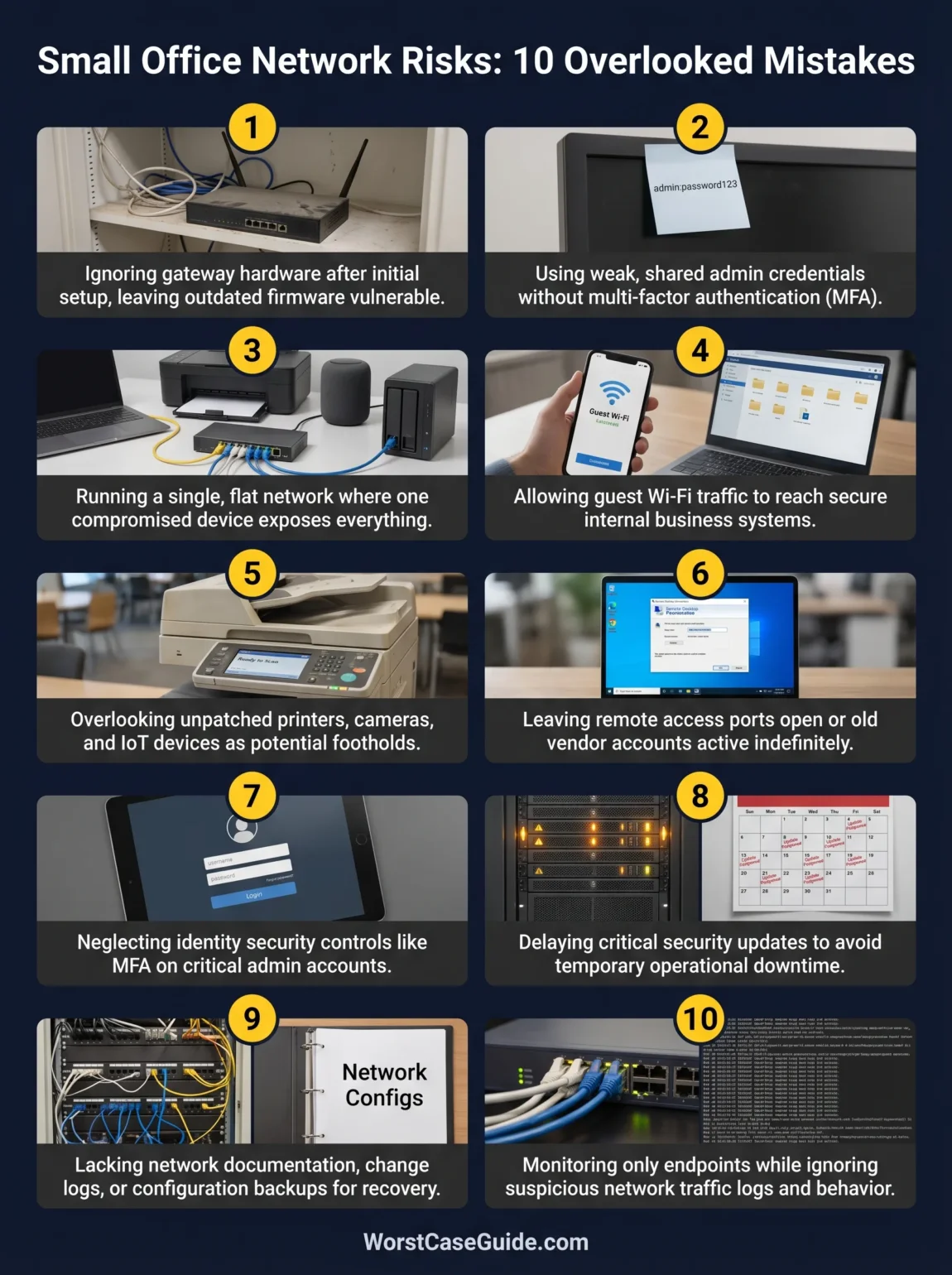
Why this topic matters: in a small office, the network is often the shared floor under email, file access, printers, accounting tools, VoIP, cameras, remote work, and guest devices. When that floor shifts, several business functions move with it.
Why Small Office Networks Turn Risky Faster Than Teams Expect
Small offices rarely start with bad intent. They start with speed. The internet needs to work on day one, staff need Wi-Fi, the printer needs to join, remote access needs to function, and nobody wants to spend three afternoons discussing VLANs, DHCP scopes, or admin roles. So the network grows by convenience. That is usually where the trouble begins.
The common mistake is treating a small environment like a simple one. Those are not the same thing. A five-person office can still hold payroll data, customer records, browser sessions, saved passwords, cloud admin access, and devices that nobody has patched in months. One weak point can travel farther than expected.
| Setup Choice | Why It Feels Reasonable | What It Often Creates |
|---|---|---|
| One router for everything | Less hardware, less setup time | Flat trust across staff, guests, and shared devices |
| Shared admin login | Anyone can fix issues quickly | No accountability when settings change |
| Guest Wi-Fi on the same network | Easy for visitors and contractors | Extra pathways toward business systems |
| Old printer or camera left untouched | “It still works” | Long-lived weak spot with broad visibility |
| Updates delayed until later | Avoids daytime disruption | Known flaws stay reachable longer |
| No config backup | Feels optional during calm periods | Longer outage after reset, failure, or tampering |
Common Assumptions That Usually Age Badly
- “We are too small to be noticed.” Many attacks are automated. Size does not remove visibility.
- “The router is secure if the Wi-Fi password is strong.” Wi-Fi security and device administration are related, but not identical.
- “Guest devices are harmless if they only browse the web.” The issue is not just browsing. It is reachability, segmentation, and trust boundaries.
- “The printer and camera are not real computers.” They are networked systems with firmware, services, and attack surface.
- “We will fix it if something strange happens.” Without logs, documentation, and a recovery path, the office may not know what changed or how to restore it.
10 Mistakes That Weaken Network Security in Small Office Setups
Mistake 1: Treating The Router Or Firewall As A One-Time Purchase
In many small offices, the gateway device gets chosen the same way a kettle or monitor gets chosen: it is available, affordable, and working by 4 p.m. Then it stays untouched for years. That is a fragile assumption.
Why It Happens
- The office sees the router as plumbing, not as an actively managed security device.
- Replacement feels wasteful while the internet still “works fine.”
- There is no owner for firmware lifecycle, vendor support status, or end-of-life tracking.
Early Warning Signs
- No one knows the model number without walking to the closet.
- Firmware version is unknown.
- Remote management settings have never been reviewed.
- The device is still using the ISP default setup with only minor tweaks.
Worst-Case Outcome
A vulnerable or poorly maintained edge device can become the office’s blind spot. Traffic can be redirected, settings can be altered, or malicious access can persist quietly enough that the team only notices when accounts, sessions, or DNS behavior start looking odd. It is the network version of leaving the front desk unmanned because the lobby still looks calm.
Safer Approach
A smaller office often benefits from a business-grade gateway with a defined support window, documented firmware review dates, and a named owner. In a very small setup, even a single well-managed device can be enough if lifecycle planning exists from the start.
Mistake 2: Leaving Admin Access Weak, Shared, Or Too Easy To Reach
The admin side of the network is often protected less carefully than the user side. Shared credentials, reused passwords, browser-saved admin logins, and “just in case” remote access are all common. They also stack risk very quickly.
Why It Happens
- Small teams want fast access during outages.
- There may be one admin account used by employees, contractors, and former support providers over time.
- Password discipline gets weaker when the network is seen as an internal tool rather than a high-value target.
Early Warning Signs
- The same admin password is known by multiple people.
- There is no record of who changed firewall or Wi-Fi settings.
- Admin panels are reachable from too many devices or locations.
- Old support accounts still exist “just in case.”
Worst-Case Outcome
When admin access is shared or loosely controlled, a bad login is not just a bad login. It can mean altered DNS, disabled protections, rogue port forwarding, or a new account that stays hidden after the first incident is over. Then the office is chasing symptoms, not the source.
Safer Approach
Named admin accounts, strong passphrases, MFA where supported, and a smaller management surface reduce uncertainty. If remote administration is needed, it usually makes more sense behind a VPN or tightly limited management path than open exposure on the public internet.
Mistake 3: Running One Flat Network For Every User And System
A flat network is easy to stand up. It is also easy for problems to move across. If laptops, phones, printers, storage, point-of-sale devices, and smart TVs all sit in one broad trust zone, a compromise in one corner can travel sideways with less friction.
Why It Happens
- Segmentation feels like “enterprise stuff” that a small office can skip.
- Consumer-style gear often pushes teams toward one broad LAN by default.
- There is concern that separation will make printing, file access, or discovery harder.
Early Warning Signs
- Every device receives addresses in the same subnet.
- Any staff device can see shared infrastructure it does not need.
- There is no distinction between user devices, admin devices, and shared equipment.
Worst-Case Outcome
One infected laptop, one stolen credential, or one poorly secured device can become a lateral movement problem. A flat network is like one long hallway with too many unlocked doors. The first entry point may not be the most valuable system, but it may be enough to reach it.
Safer Approach
Even small environments can separate by function: staff devices, guest access, printers and IoT, management, and servers or storage where relevant. In smaller projects, this may be as simple as well-planned VLANs and firewall rules. In larger small-office systems, it often includes switch policies and more explicit east-west controls.
Mistake 4: Letting Guest Wi-Fi Touch The Business Network
Guest access tends to be treated as a hospitality feature. It is really a security boundary question. Visitors, interview candidates, contractors, vendors, and personal devices do not need the same reach as the finance laptop or the office NAS.
Why It Happens
- Teams want one easy password for everyone.
- Guest isolation is left off by default or never tested.
- “Temporary” contractor access quietly becomes permanent.
Early Warning Signs
- Guests receive the same SSID and password as staff.
- The guest network can browse local devices.
- Support vendors connect from unmanaged personal laptops.
Worst-Case Outcome
A compromised visitor device does not need malicious intent from the visitor. It only needs reach. Once guest traffic can talk to internal services, an office has created extra opportunity for scanning, password guessing, exposed file shares, or accidental interaction with systems that were meant to stay private.
Safer Approach
A separate guest SSID with client isolation, internet-only access, and a different credential path is usually the cleaner option. Is a five-person office too small for that split? Usually not. The smaller the team, the easier it often is to keep boundaries clean early.
Mistake 5: Trusting Printers, Cameras, NAS Units, And Other “Side Devices” Too Much
What looks more harmless than the printer everyone ignores until Friday afternoon? Quite a lot, actually. Shared office devices often run old firmware, keep default services enabled, and stay online for years with little review.
Why It Happens
- These devices are seen as utilities, not systems with credentials and network services.
- Ownership is blurry; IT, office management, and vendors each assume someone else handles them.
- Replacement cycles are longer than laptops or phones.
Early Warning Signs
- Default services such as old web admin pages, file sharing, or discovery protocols remain enabled.
- Firmware has never been updated after installation.
- The office cannot say which printer, camera, or NAS contains stored credentials or scans.
Worst-Case Outcome
An overlooked device can become the quiet foothold that outlasts the first response effort. That may mean eavesdropping on traffic paths, grabbing stored documents, abusing scan-to-email settings, or using the device as a bridge into other parts of the office network.
Safer Approach
Shared devices usually deserve their own network segment, a slimmed-down service set, reviewed credentials, and a simple maintenance calendar. If a device cannot be updated or managed cleanly, its risk should be treated honestly rather than waved away because it is “just a printer.”
Mistake 6: Treating Remote Access As A Shortcut Instead Of A Controlled Entry Point
Remote work, after-hours support, and vendor maintenance all create pressure to open a door back into the office. That door is often left wider than intended. Port forwarding, exposed RDP, broad remote management, and permanent vendor access are still seen in small environments because they solve immediate pain.
Why It Happens
- The office needs fast help and minimal friction.
- Consumer habits carry into business setups.
- Remote access methods are added one by one and never cleaned up.
Early Warning Signs
- Old port forwarding rules with unclear purpose.
- Remote desktop open beyond a tightly controlled path.
- Multiple remote tools installed on the same machines.
- Vendors keep standing access long after a project ends.
Worst-Case Outcome
A weak remote path can turn a local office issue into an external exposure. Once attackers do not need to be in the office, the small size of the environment stops helping at all. The network is now reachable from anywhere a brute-force script or stolen credential can reach.
Safer Approach
Remote access tends to be safer when it is narrow, logged, time-bound, and identity-protected. In smaller offices, a VPN plus MFA and role-based access may be enough. In larger setups, separate admin jump paths and stricter device trust checks make more sense.
Mistake 7: Ignoring Identity Controls Because “This Is A Network Topic”
Small office security conversations often split into neat categories: the network over here, user accounts over there. Real incidents do not respect that divide. If an attacker gets the right email, VPN, cloud admin, Wi-Fi controller, or password manager access, the network can be altered without touching a cable.
Why It Happens
- The office assumes network protection lives mainly in the firewall.
- MFA rollout stops at a few obvious apps.
- Administrative privileges grow over time and are rarely pulled back.
Early Warning Signs
- No MFA on admin portals, VPN, email, or domain-related accounts.
- Former employees or ex-contractors still have elevated access.
- One user account can change network, cloud, and endpoint settings across the office.
Worst-Case Outcome
A stolen password becomes more than an inbox problem. It can become a control-plane problem: changed DNS, altered forwarding, disabled protections, fraudulent password resets, or quiet persistence through trusted management channels.
Safer Approach
For small offices, the safer path usually includes MFA on every sensitive account that supports it, separate admin identities, fewer standing privileges, and a documented offboarding routine. For higher-risk access, phishing-resistant options such as passkeys or security keys deserve real attention.
Mistake 8: Delaying Firmware, OS, And Application Updates Because Downtime Feels Scarier
This one is easy to understand. Offices stay busy. Updates can interrupt calls, printers, shared apps, or old line-of-business tools. So patching gets moved to “next week,” and then next month. The office is choosing visible pain avoidance over quieter risk reduction.
Why It Happens
- No agreed patch window exists.
- There is fear that one change will break an older dependency.
- Network gear, switches, access points, and printers are left outside the normal update habit.
Early Warning Signs
- Updates are triggered only after a news story or outage.
- Edge devices are on older firmware than staff laptops.
- The team does not know which systems require maintenance first.
Worst-Case Outcome
Known flaws stay open longer, and the office slowly depends on a brittle mix of outdated components. Then one incident forces emergency changes under pressure, which is exactly when people make messy decisions and miss side effects.
Safer Approach
A small office usually benefits from a simple update rhythm: monthly review, shorter cycles for internet-facing systems, test notes for fragile apps, and a rollback plan where possible. Calm maintenance beats emergency maintenance.
Mistake 9: Having No Asset Map, No Change Log, And No Configuration Backup
Many offices do not fail because the first mistake was impossible to avoid. They fail because no one can reconstruct what exists after the mistake happens. Which switch port feeds the AP? Which VLAN reaches the printer? What DNS setting was changed? Which firewall rule was added last month? Silence on these basics makes recovery slower and more expensive.
Why It Happens
- Documentation feels like admin work that can wait.
- Changes happen live, in a hurry, often by memory.
- Config exports are skipped because “we can always set it up again.”
Early Warning Signs
- No current device list exists.
- IP plan, SSIDs, VLANs, and admin ownership live in people’s heads.
- Backups exist for files, but not for network device configurations.
Worst-Case Outcome
After reset, hardware failure, tampering, or staff turnover, the office may lose more time rebuilding the map than fixing the incident itself. That is when small outages become multi-day operational problems.
Safer Approach
A lightweight asset inventory, configuration export routine, and change note habit go a long way. Not fancy. Just current. If the office uses managed service support, these records still matter because outside help is faster when the basics are already written down.
Mistake 10: Watching Endpoints But Not The Network Itself
Antivirus, endpoint protection, and email filtering matter. Still, they do not replace visibility into the network. Sluggish traffic, repeated failed logins, strange DNS behavior, unexpected admin changes, and unusual east-west traffic can all signal trouble before a user reports anything.
Why It Happens
- Small teams assume monitoring means an expensive SOC setup.
- Logs are enabled but never reviewed.
- There are alerts for devices, not for network behavior.
Early Warning Signs
- No one checks router, firewall, VPN, or DNS logs.
- Users mention certificate warnings or odd redirects and the office treats them as random glitches.
- Bandwidth problems appear with no clear source.
Worst-Case Outcome
The office learns about an incident late, after credentials are abused, settings are changed, or a compromised device has already touched systems it never needed to reach. Late detection is not just a technical issue. It expands business disruption.
Safer Approach
In smaller projects, baseline logging and periodic review can already change outcomes. In larger small-office setups, alerting on admin changes, failed access attempts, VPN events, and DNS anomalies becomes much more useful. The goal is not perfection. It is earlier notice.
Risk Patterns That Show Up Again And Again
- Convenience keeps winning over separation. One SSID, one admin login, one broad subnet. Easy today, costly later.
- Invisible devices become permanent exceptions. Printers, cameras, and access points are often trusted more than they deserve.
- Identity and network decisions are treated as separate. In practice, cloud and admin identity can reshape the network very quickly.
- Downtime fear delays healthy maintenance. Then the office gets emergency downtime instead.
- Recovery planning stops at files. Data backups matter, but so do firewall rules, switch settings, Wi-Fi design, and admin ownership records.
A calmer way to think about small office network security
The safer setups are usually not the most complicated ones. They are the ones where trust is limited on purpose, access is traceable, updates have a rhythm, and recovery does not depend on one person’s memory.
FAQ
What is the most common network security mistake in a small office?
The most common pattern is usually too much trust in one flat setup: one router, one broad network, shared credentials, and mixed device types. Each shortcut looks minor on its own. Together, they remove separation and make incidents travel farther.
Does a very small office really need guest Wi-Fi separation?
In many cases, yes. Guest separation is less about office size and more about trust boundaries. Visitors, contractor devices, and personal phones rarely need local access to business systems, printers, storage, or admin interfaces.
Are printers and cameras genuinely part of network security?
Yes. They are networked devices with firmware, services, credentials, and often long service lives. Because teams tend to forget them, they can stay exposed longer than user devices.
Is a business-grade router enough by itself?
It can be enough for some smaller offices, though only if the surrounding habits are sound: separate admin access, planned updates, guest isolation, device segmentation where needed, logging, and documented recovery steps. Hardware alone does not carry the whole setup.
How often should a small office review network settings?
A regular monthly review is a practical starting point for many teams, with faster attention for internet-facing systems and any unusual login, DNS, VPN, or admin activity. The real value is consistency, not pretending the network never changes.
What should be documented before something goes wrong?
A current device list, admin ownership, IP ranges, SSIDs, VLAN purpose, firewall rules with business reason, remote access method, vendor accounts, and recent configuration backups usually make recovery much easier.